GeoPro: Continuous Employee Location Tracking
Overview
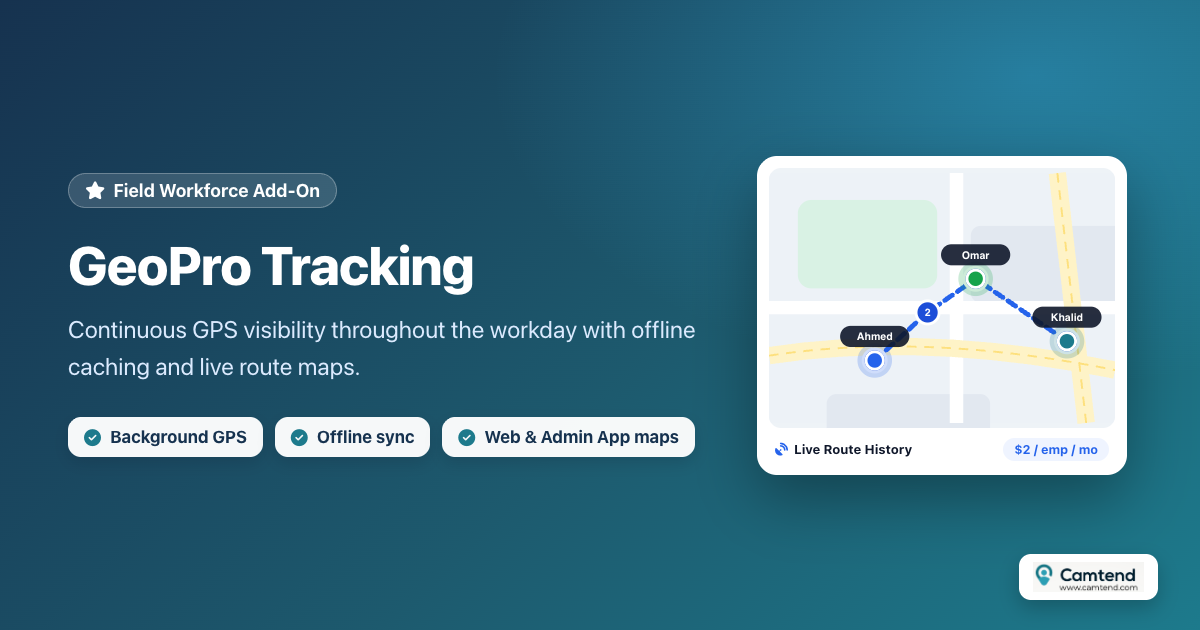
GeoPro lets system administrators know where employees are continuously throughout the entire day. Management can verify an employee's location automatically via their smartphone's GPS without any manual intervention from the manager or the employee. The feature works on employees' personal-mode phones even if the employee closes the attendance app or restarts their phone, and uses modern battery-optimization techniques to minimize power consumption.
Benefits & Use Cases
- Ideal if your operations require continuous location tracking—such as sales representatives, drivers, site supervisors, and field staff.
- Geofencing: Verify that no employee leaves their assigned work location before their shift ends.
- View a live map showing all (or selected) employees in real time during working hours and confirm whether they remain at their assigned sites.
- Works in the background even when the employee app is closed and when the phone is offline: locations are stored locally on the device and uploaded automatically to Camtend once internet access returns.
Privacy
- This feature cannot be activated on an employee's phone without their knowledge or without them explicitly granting the permission on their device.
- Employees can disable this permission anytime in their phone's settings after their shift ends or when leaving the company.
- GeoPro requires the employee to enable "Always" location permission on their phone so it continues running even if the attendance app is closed and restarts automatically in the background after a reboot.
- Locations continue to be recorded offline and sync automatically to Camtend as soon as connectivity resumes.
- Administrators can request/enable GeoPro for all employees or specific employees only.
Subscribing to GeoPro
GeoPro is a standalone add-on service and is not free or included in the free plan or standard paid plans. Subscribing to it requires an additional fee.
Subscription Pricing
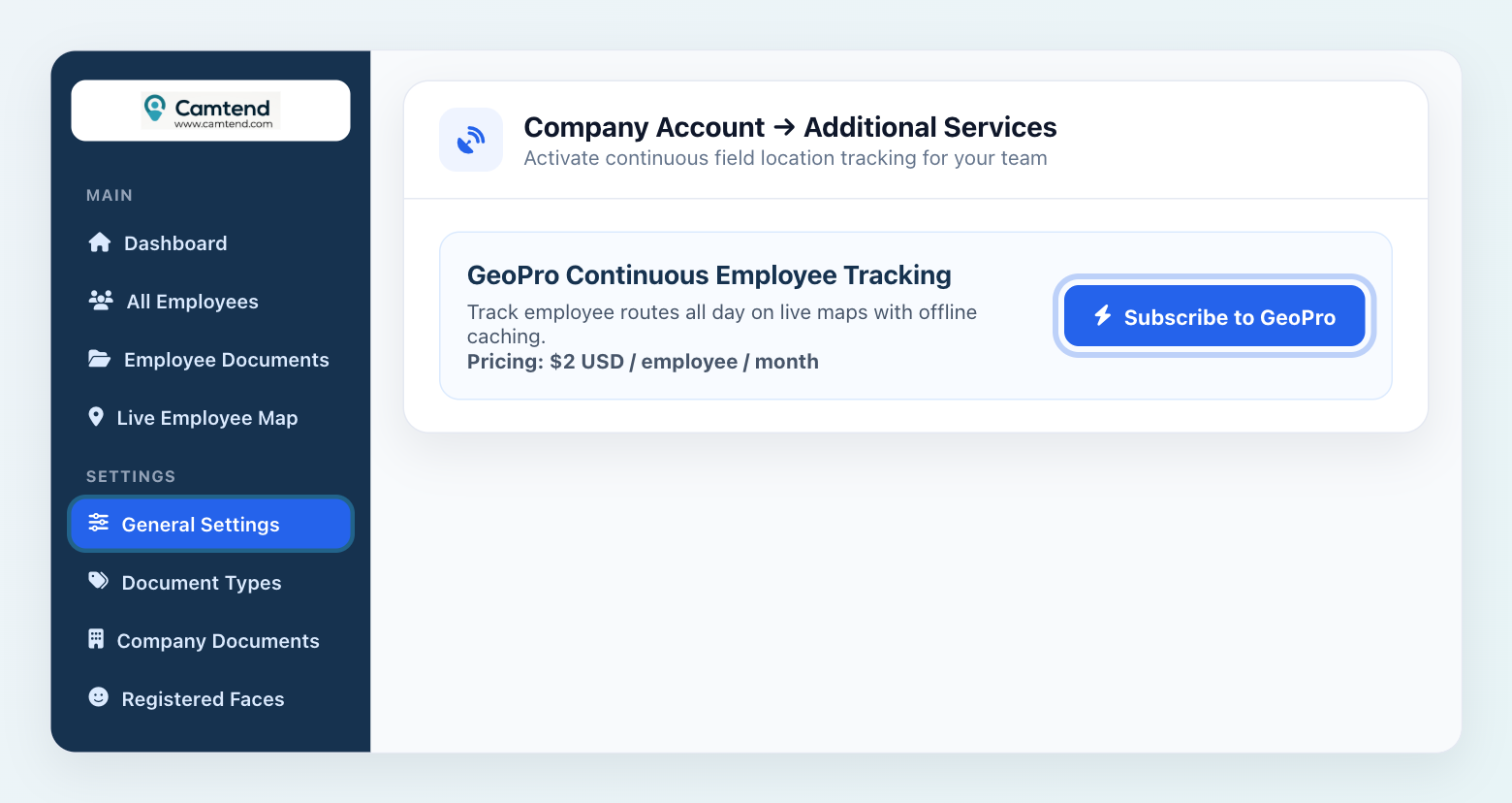
The subscription cost is $2 USD per employee per month. For example, if your plan covers 15 employees, the total GeoPro cost is $30 USD per month.
How to Subscribe
- Open Settings → General Settings.
- Scroll to Company Account → Subscribe to Additional Services.
- Click the subscribe button for the GeoPro Continuous Employee Tracking service, as shown below.
How to Enable GeoPro for Employees
To enable GeoPro for specific or all employees, follow these steps:
- Open Employees → All Employees.
- Select the employee whose profile you want to update.
- Choose Always (GeoPro), then click Save at the bottom of the screen.
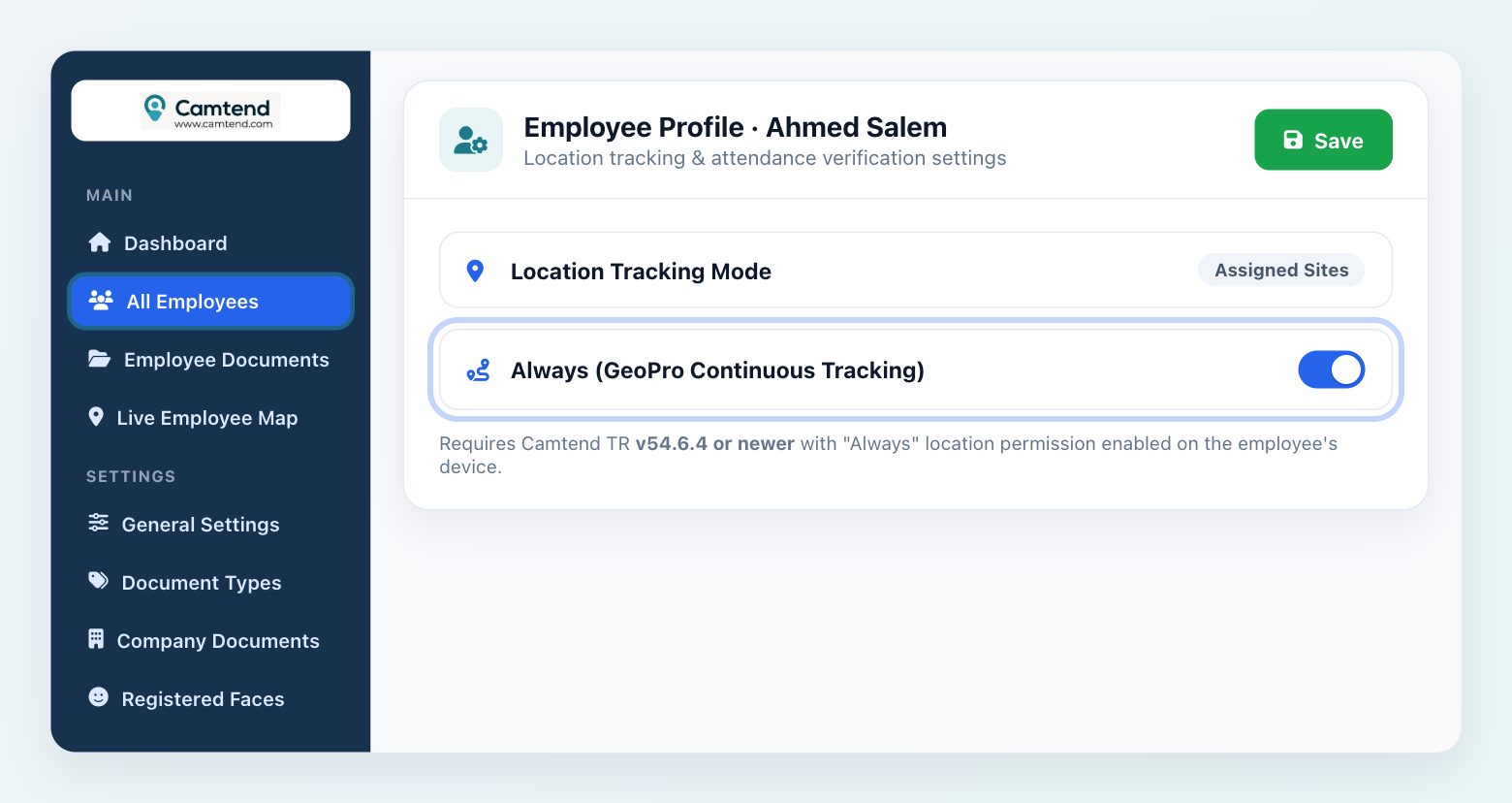
Make sure employees are using the latest version of the Camtend TR app (version 54.6.4 or newer). Employees will then be prompted to grant "Always" location permission when opening the attendance app on their phones.
Viewing Employees on the Live Map & Movement History
Administrators can monitor all GeoPro-enabled employees live on an interactive map, either from the Camtend Admin App or from the web dashboard at camtend.com.
1. From the Camtend Admin App:
- Open the main menu in the Admin App.
- Tap "Employee Locations Map".
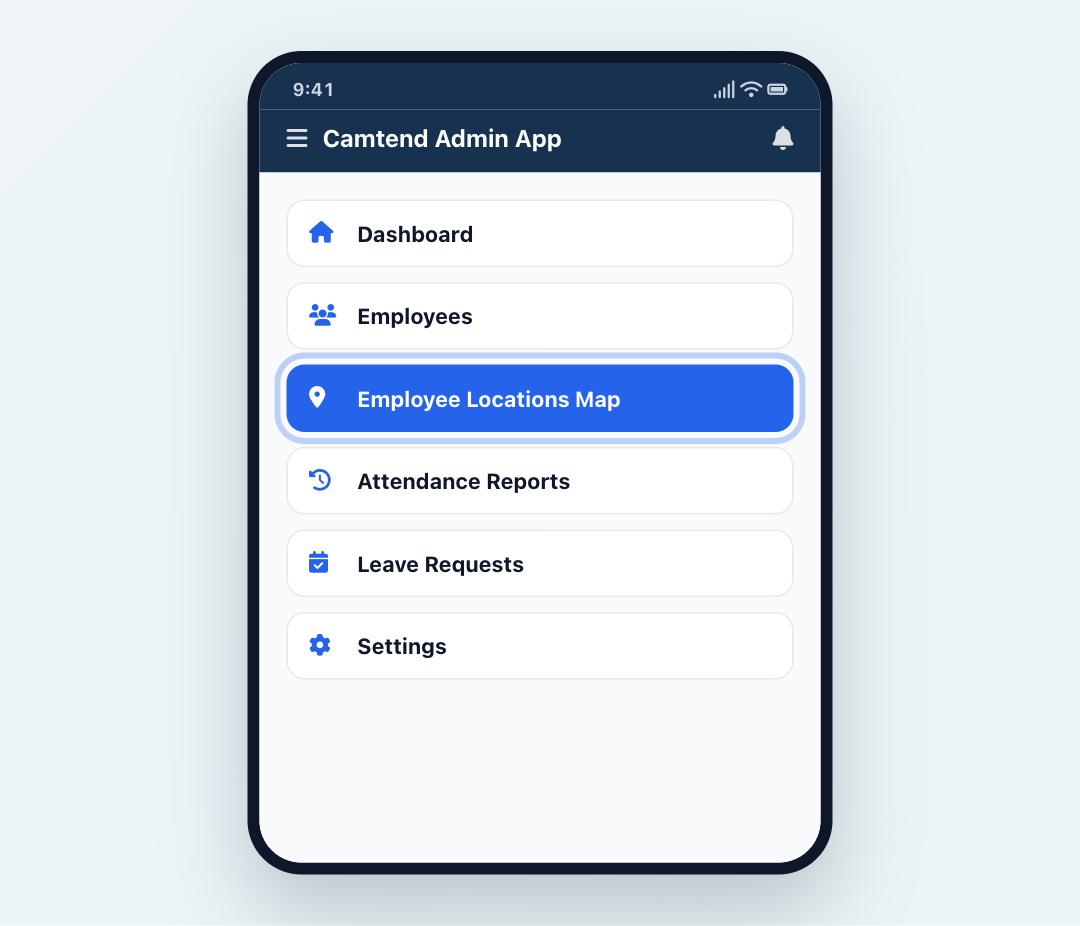
- A map appears displaying all active employee locations, as shown below.
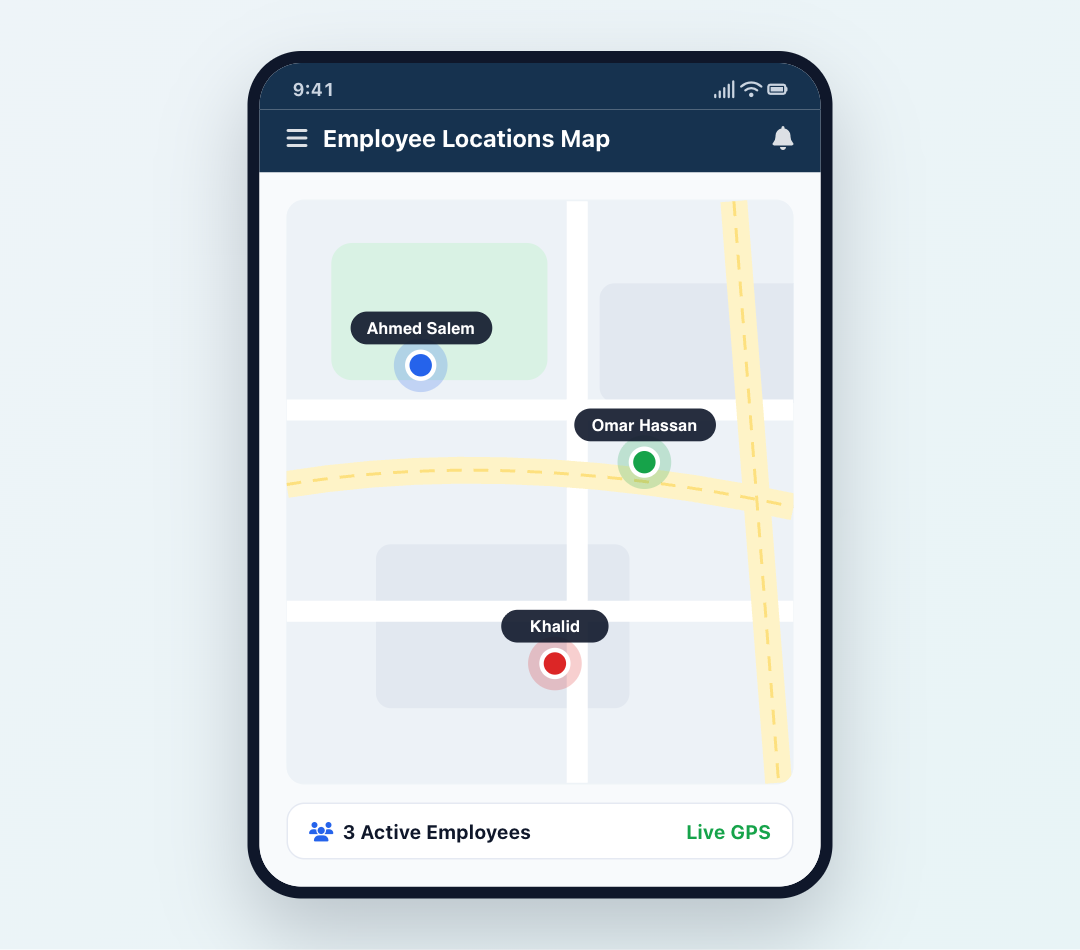
- To view every location an employee visited, tap the employee's name and then tap "View Full Movement History".
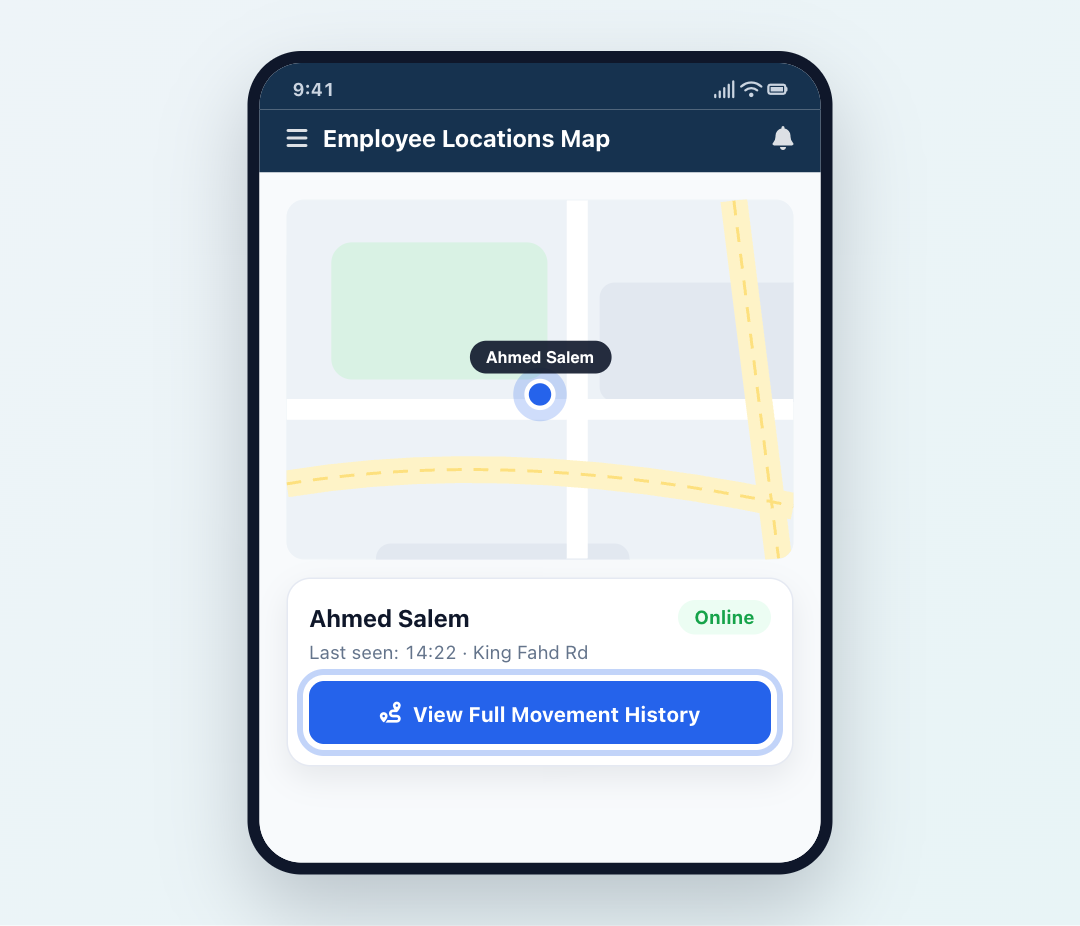
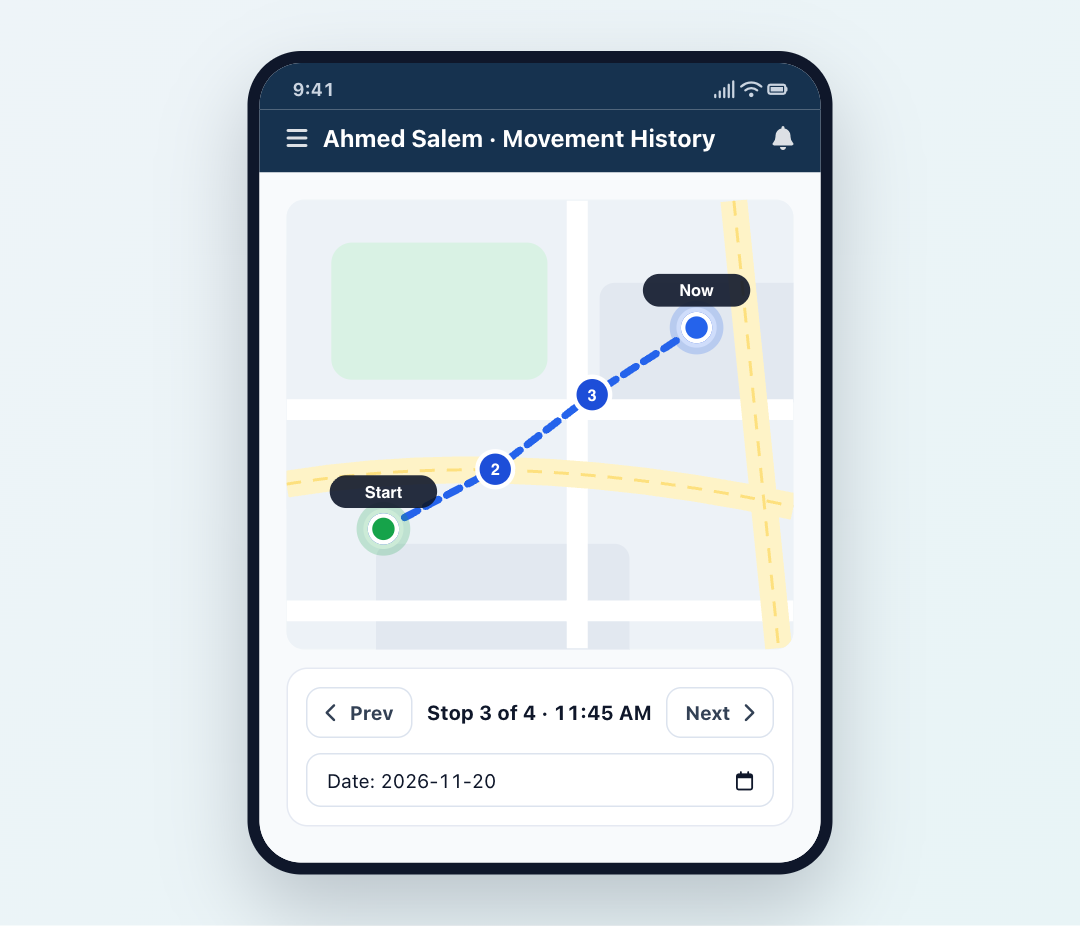
- You will now see a dedicated route map of the employee's current and past movements, with bottom arrows to step between locations and a date selector at the bottom of the screen to review previous days.
2. From the Web Dashboard (camtend.com):
After signing in on the website, your home dashboard displays a map showing recent employee movements.
- Click the map.
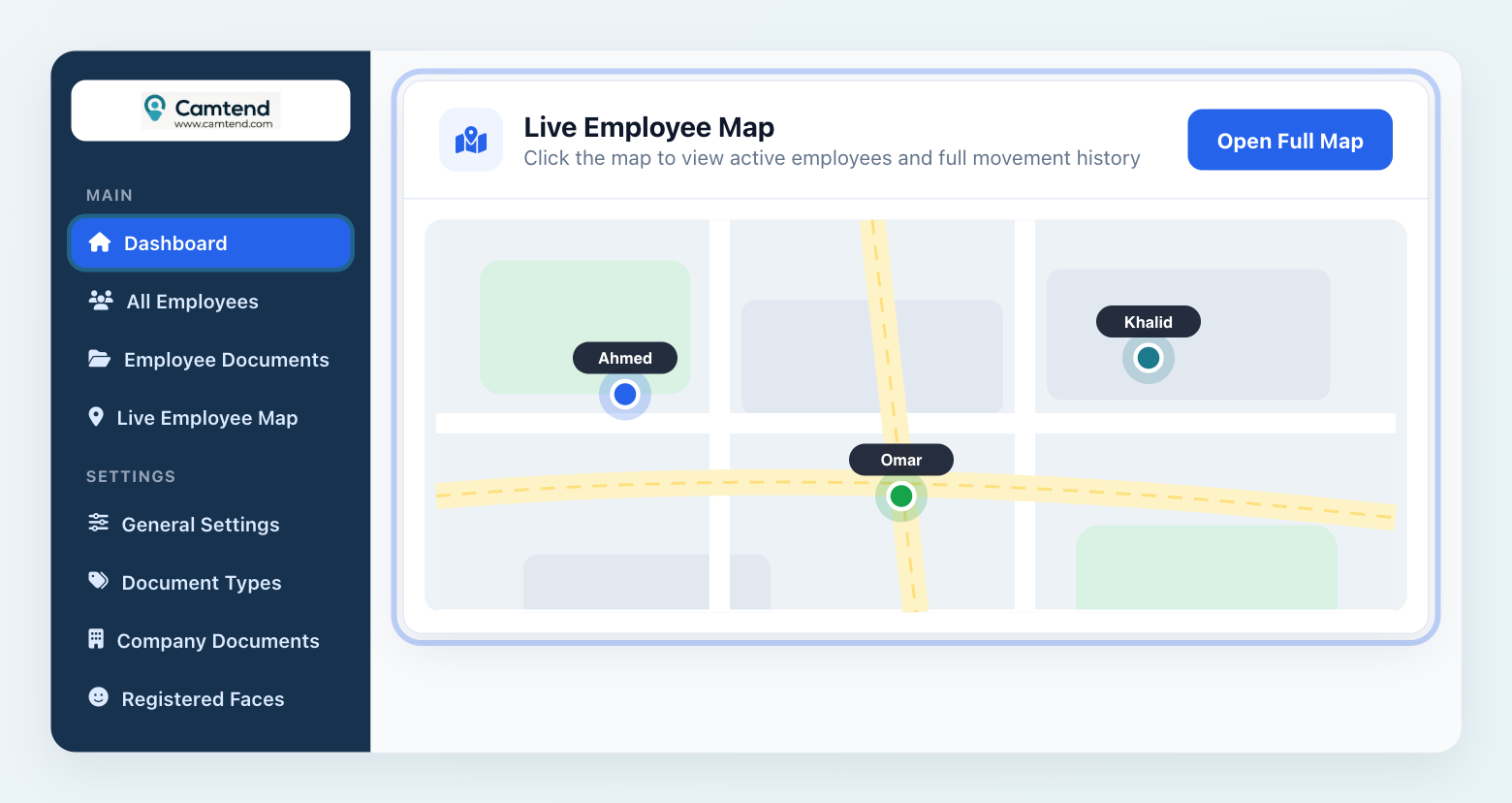
- A full map opens alongside a list of all employees with recorded locations in the last 25 hours.
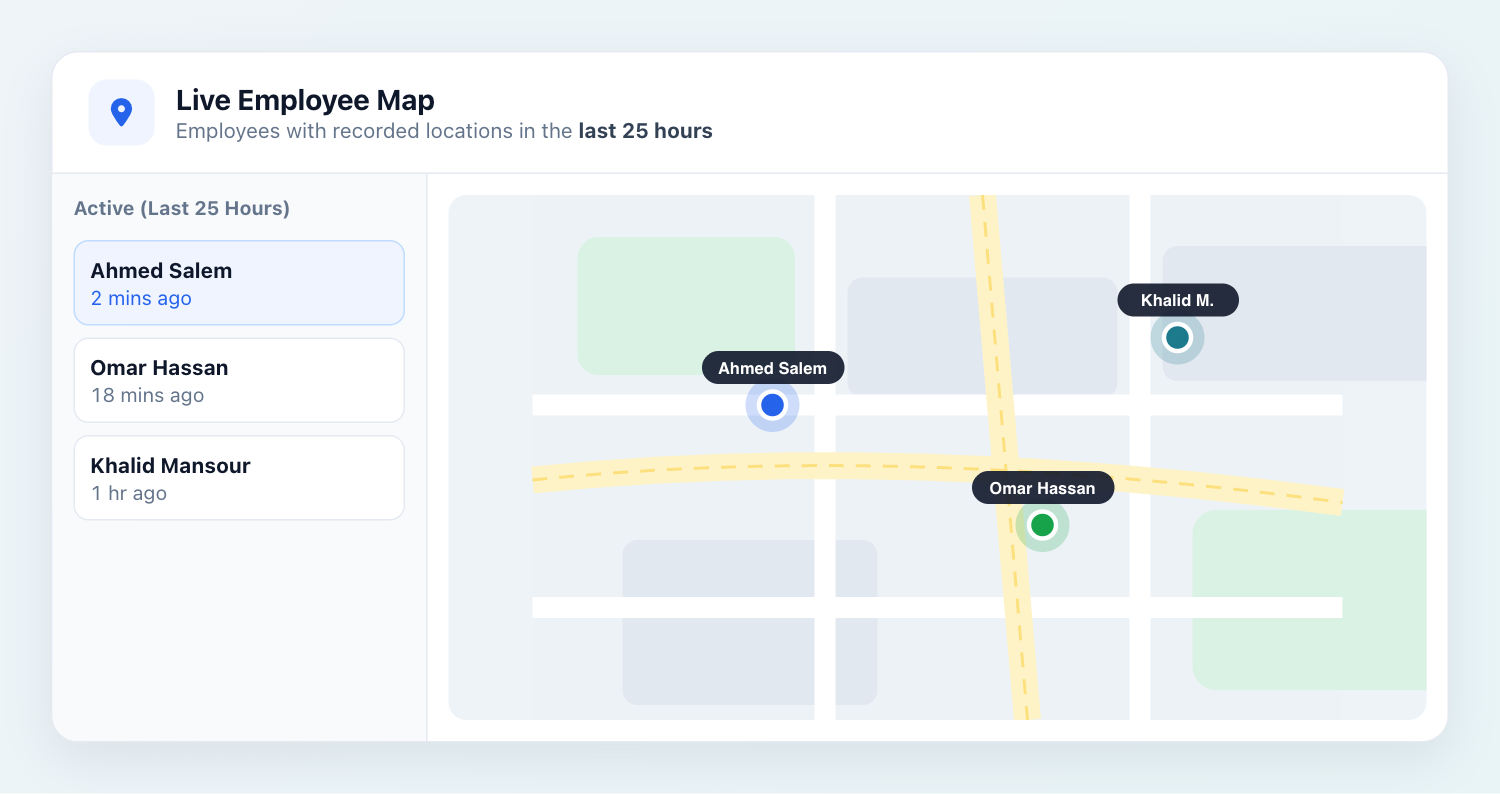
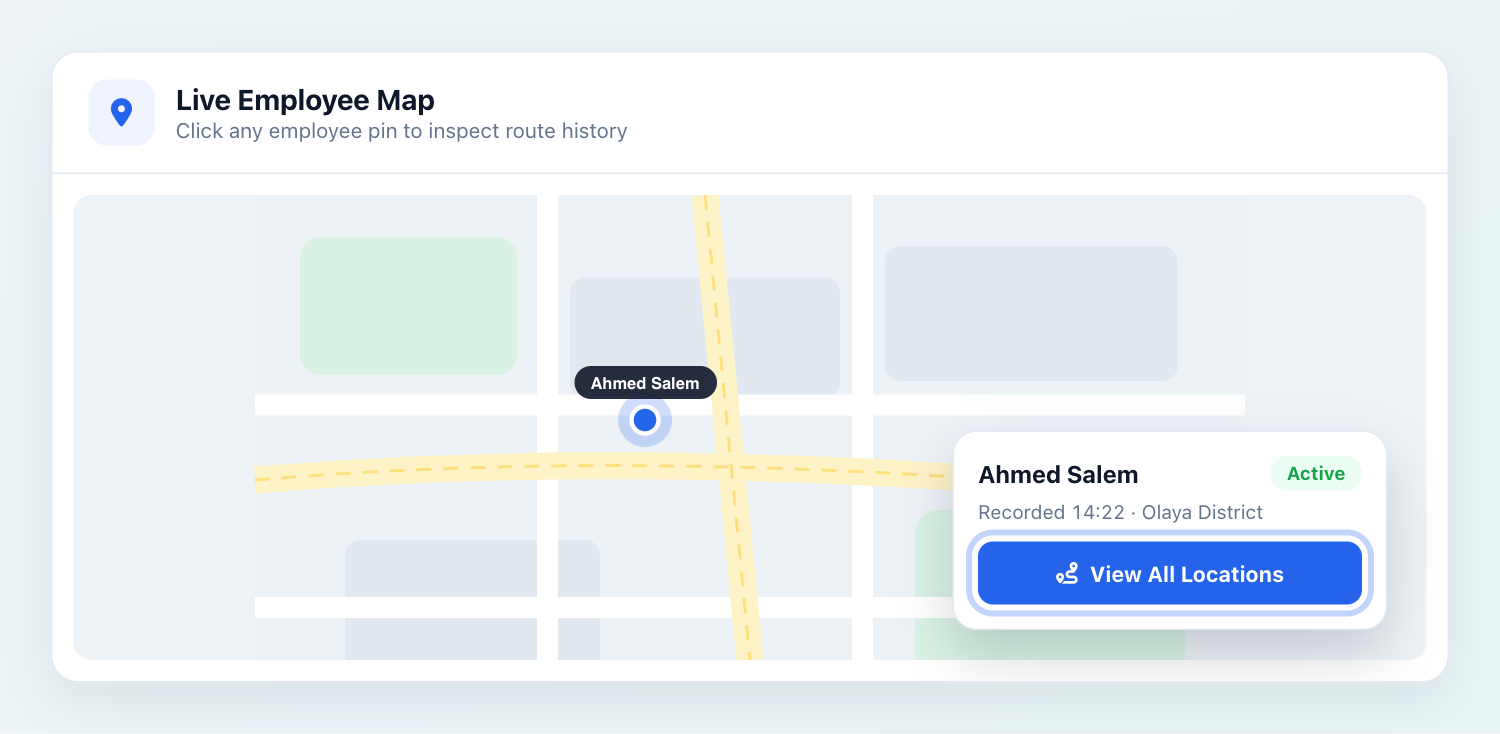
- To view all locations an employee visited, click the employee's name and then click "View All Locations".
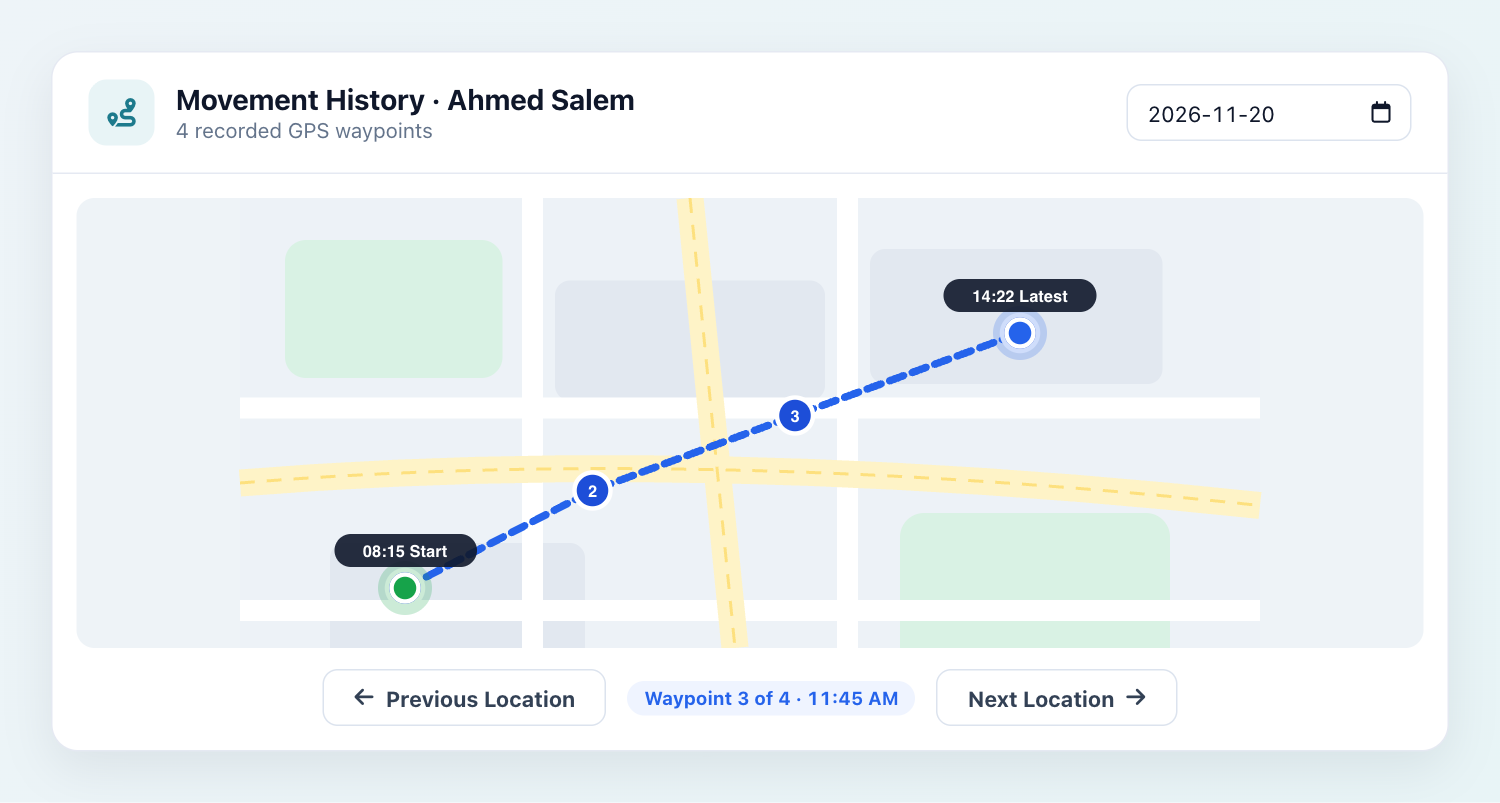
- You will see a dedicated map of all current and historical employee movements—use the arrows at the bottom to navigate between stops, or select a past date at the top of the screen to view previous days.
Wishing you continued success.


تعليقات
إرسال تعليق