The Smart Assistant in the Camtend App: Your Personal In-App Companion
Why Did We Add the Smart Assistant?
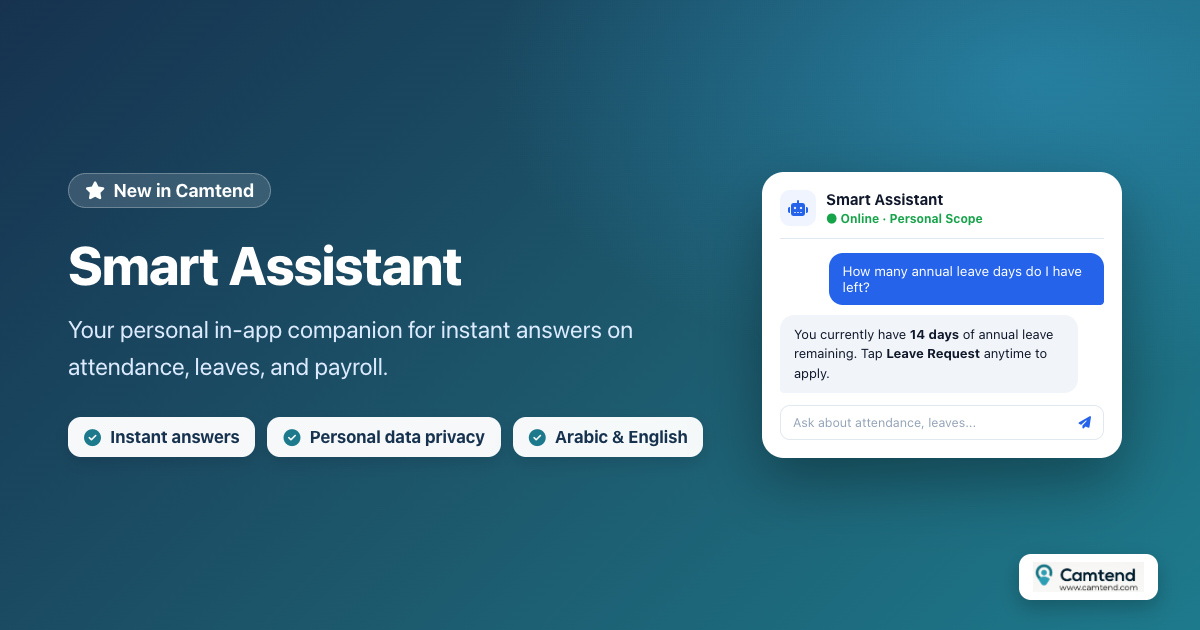
Every employee needs quick answers during their workday: How do I clock in? Why wasn't my lateness rule calculated differently? How much leave balance do I have left? Where can I find my salary advances report? Previously, employees had to dig through menus or wait for someone from HR or management to answer. Now, they can simply type their question in their own language, and the Smart Assistant answers right away—explaining the steps and checking their personal records when needed.
The Smart Assistant is now available inside the Camtend Employee app right from the side menu under the label Smart Assistant. It is powered by the same assistant found in the chat button on the Camtend website, now built directly into the mobile app with awareness of where the employee opened it from.
How Does It Work?
The experience is designed to be completely effortless:
- Type your question in the bottom input box—up to 2,000 characters.
- Fast replies: The assistant responds within seconds. If a question requires inspecting your attendance or leave records, it may take slightly longer, so each request allows up to two minutes.
- Saved conversation history: If you leave the screen and come back later, your previous messages remain right where you left them.
- New chat refresh button: Tap the refresh button at the top of the screen anytime to start a fresh conversation so old and new questions stay separate.
- Rate responses: Use the thumbs-up or thumbs-down buttons beneath each reply to help us continually improve the assistant's answers.
- Escalation to human support: When an issue requires our support team's direct help, a "Contact a Support Agent on Telegram" button appears so you can open the chat directly.
- Automatic language & direction support: The app passes your interface language with every question—replying in Arabic when set to Arabic, and in English when set to English, with automatic left-to-right / right-to-left formatting.
Privacy Boundaries: The Assistant Only Sees Your Own Data
This is an important point we want to make crystal clear. The Smart Assistant operates strictly under the permissions granted to the employee using it—meaning it can only check your own data: your attendance, your leaves, your salary advances, and your personal reports. It can never display a coworker's information or company-wide data. Privacy is a core foundation of the design, because employee data is never public.
Example Employee Questions
Here are everyday questions employees ask across different topics:
Attendance & Clocking
- How do I clock in from the app?
- Did I clock out yesterday, and at what time?
- Why did I receive a late arrival alert today?
- How many minutes late was I this month?
- How many absence days are recorded for me in September?
- Why wasn't the time I worked on Friday counted?
- How can I check the overtime hours I worked last week?
Leaves
- How many days of annual leave do I have remaining?
- How do I submit a leave request?
- Has the leave request I submitted been approved?
- Can I take sick leave, and what documents are required?
Advances & Financial Transactions
- How many salary advances do I currently have, and how much is left to repay?
- How do I request a new salary advance?
- Where can I view my financial transactions report?
- When is my salary deposited into my account?
Using the App
- Where do I find the face registration screen?
- How do I switch the app language to English?
- My app won't open—what should I do?
- How do I update the app to the latest version?
- Where can I find notification settings?
Technical Troubleshooting
- The app isn't recognizing my face—why?
- I'm seeing a "No internet connection" error even though my connection works—how do I fix it?
- I clocked in, but it doesn't show in the report—what happened?
Multi-Part Questions That Check Your Records
- Compare my working hours last month and this month.
- Do I have any overdue alerts I haven't responded to?
- Summarize my current leave balance and salary advances in two lines.
Example Supervisor Questions
When using the mobile app as an employee, a supervisor can ask the same questions about their own personal records. Team monitoring and approvals, meanwhile, belong in the dedicated web and admin tools—so it helps to know that boundary upfront:
- How do I record my own clock-in and clock-out as an employee?
- How do I submit a leave request for myself?
- Do I have available leave this week?
- How do I review leave requests submitted by my team? (The assistant will point you to the right place, as team actions are outside the employee app's personal scope.)
- Where can I find the team attendance report? (The assistant will explain that group reports aren't accessible from this personal app.)
- Which employee was late the most this week? (The assistant will never disclose coworkers' data and will politely explain why.)
- How should I handle an absence alert triggered for a member of my team?
- Can I edit attendance for another employee? (The assistant will explain this must be handled through management tools and guide you on the process.)
Example Manager Questions
Managers often want to understand how system rules behave rather than inspect individual records. Examples include:
System Behavior & Calculations
- How is overtime calculated in Camtend?
- What is the difference between tardiness and absence in system calculations?
- How do I configure shift schedules for a new group of employees?
- What happens if an employee forgets to clock out?
Permissions & Settings
- Who can approve employee leave requests?
- How do I grant a supervisor a new permission?
- How do I add a new branch for our company?
Reports
- What reports are available for tracking attendance and leaves?
- How do I export the monthly advances report?
- Can I schedule a weekly report to be sent to my email?
Issues & Support
- Employees are reporting slow clock-ins—what could cause that?
- Why are duplicate clock-in alerts appearing for some employees?
- I need to contact support about a subscription issue.
Questions That Require Human Support
Some requests cannot be resolved automatically by the assistant—when these come up, the button to contact support on Telegram appears:
- Requesting a punch adjustment for an employee who no longer works at the company.
- Disputing a payroll deduction that was calculated incorrectly.
- Billing or subscription plan issues.
- Reporting a bug or urgent incident requiring technical investigation.
Tips for Asking Better Questions
- Be specific: "How many leave days do I have left?" gets a much better answer than "Tell me about my leaves."
- Mention a date or timeframe: "How many hours did I work last week?" yields more accurate results.
- Describe what happened clearly: "I clocked out at 5:00 PM and it didn't appear in the app" helps diagnose the issue.
- Start a "New Conversation" when switching to a completely different topic so the context stays clean.
- Rate the reply: If an answer wasn't helpful, tap thumbs down so we can keep improving it.
Summary
The Smart Assistant isn't meant to replace your management team or human support—it is built to give employees fast answers to everyday questions anytime, and guide them to the right place whenever a human specialist is needed. Try it now from your app's side menu, ask your first question, and let us know what you think!


تعليقات
إرسال تعليق